

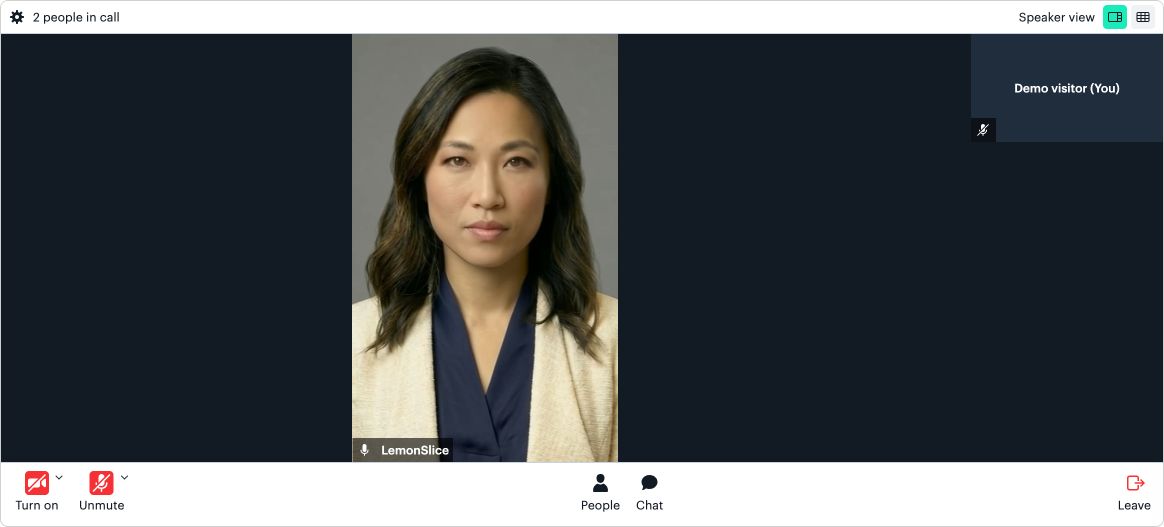
The Lemon Slice interviewer puts a talking avatar in the room with the participant. Prepare an interview briefing to guide the conversation, then use the transcript-processing prompt to organise the findings afterwards.
Meet the avatar in the room
Create Hosted Room opens the embedded room beneath the setup controls. This is the interview view: the participant sees and speaks with the avatar while the briefing supplies the purpose, questions and finishing condition.
Use Leave Embedded Room when the session is complete. The Discussion Capture area provides the captured text for review and post-processing. Check the transcript before treating a statement as a finding.
For an interactive interview, enable only the microphone and camera you intend to use when the browser asks for device access. The screenshot demonstration joined with both devices off.
Prepare the briefing document
Use an Interview Briefing heading in the knowledge document. Include why the interview is being conducted, the questions it should explore and the point at which it should finish.
The Harbour Services example asks about a customer’s first week, hand-offs, repeated questions, exception handling and ownership. It closes with a recap and an opportunity for the participant to correct it. Download the briefing below and adapt those sections to your own purpose.
Load the brief and processing prompt
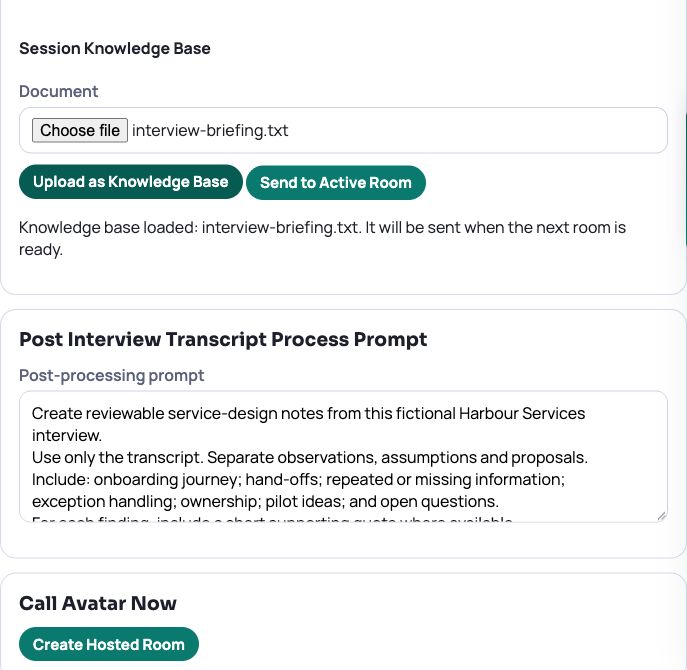
Use a portlet you have permission to configure. The setup image below shows the fictional briefing and processing prompt; the room image above shows the avatar.
- Under Configure Avatar Experience, choose Interviewer from Known Agent, or use the agent ID agreed for your environment.
- Under Session Knowledge Base, choose the briefing document and select Upload as Knowledge Base.
- Check that the status names the document and says it will be sent when the next room is ready.
- Enter the Post-processing prompt describing how you want the completed transcript organised.
- Save the agent and processing settings. When ready for the intended session, use Create Hosted Room. Send to Active Room is available when adding knowledge to an existing room.
Example: ask for reviewable findings
The example processing prompt requests the onboarding journey, hand-offs, missing information, exceptions, ownership, pilot ideas and open questions. It asks for supporting quotes and separates observations, assumptions and proposals.
Only include an owner if the transcript names one. A suggested action should remain a proposal until it is agreed. This makes the output easier to compare with the service model and Gantt Roadmap during the follow-up review.
Finish the session and review its output
Ask the participant to use the room’s leave control when finished so transcript processing can run. Review the captured discussion and processed output before moving findings into the shared model or plan.
Completed artifacts can include the transcript, processing prompt and output, room status and recording metadata. A recording file depends on provider availability and the configured recording integration. The briefing document is held in the current browser session; after reloading the page, upload it again before a later room.
The downloads provide the fictional brief and processing prompt. The mapping walkthrough uses separately scripted workshop notes; it does not present those notes as a transcript from this avatar.
Try it in your workspace
Check the loaded document name, the interview’s finishing condition and the post-processing prompt before creating a room.
Demo notes and files
The screenshots use the private CEP Blog · Field Notes workspace. The notes below identify the example portlets and downloadable files. Use your own permitted portlets to follow the steps.
See the demo notes ↗Download the example processing prompt ↓
Download the fictional interview briefing ↓
This is part of an editorial retrospective. The archive date is not a feature release date; descriptions and screenshots reflect the November 2026 local demonstration. The examples are fictional.