
A workspace helps people find the portlets they are using together. Shared editing happens inside the modules that support it. This post covers both parts of preparing a working session.
Arrange the workspace
Cards view is useful when you want a straightforward list of tools and notes. Canvas view lets you position cards and group them in named zones, such as Discovery, Design and Delivery.
- Switch the home page to Workspaces view and select the workspace.
- Use Cards to review the members and their notes. Use Reorder when the sequence needs changing.
- Switch to Canvas to arrange the cards spatially and group related work in zones.
- Open each portlet you expect to use in the session and check that the participants have the required access.
Example: a shared service model
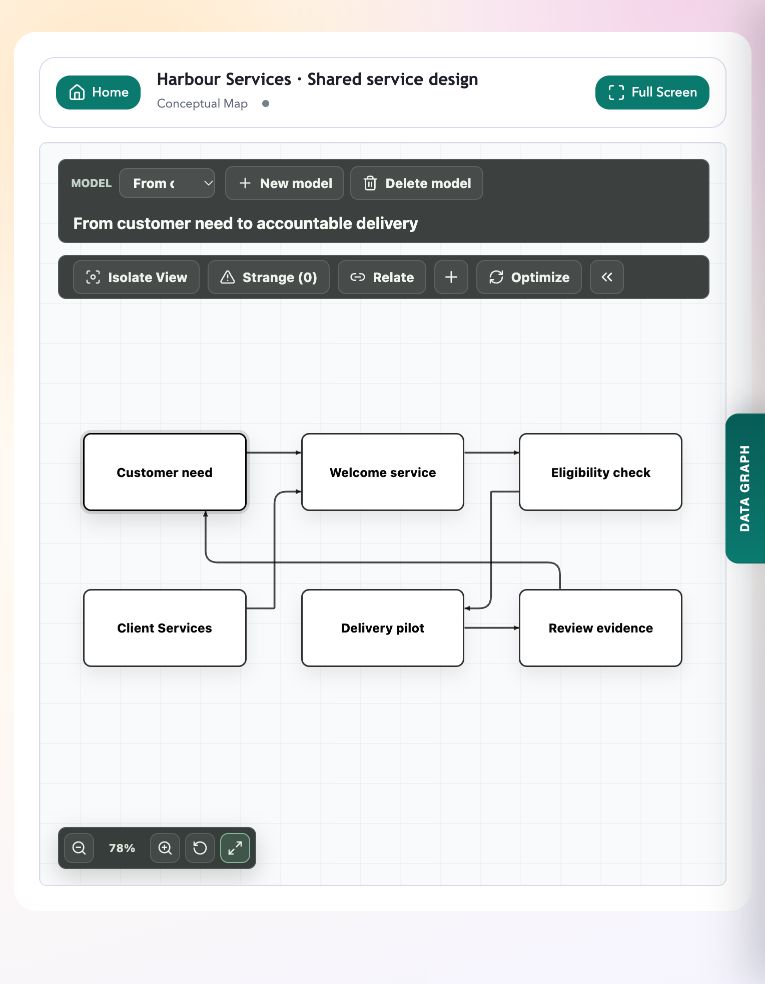
In the Harbour Services model, Customer need connects to Welcome service, Eligibility check, Client Services, Delivery pilot and Review evidence. Use that model during a discussion about which capability needs changing and who should review the result.
In Conceptual Map, select a concept to review its title and notes. Use the relationship controls to inspect its connections. Hide the editing panel and choose Fit model to screen when you want to discuss the whole model.
Use the module’s editing indicators
Conceptual Map and Gantt support shared editing. Their live-editing indicators show the connection state and editing activity. In Gantt, people can work on different task fields while changes are shared.
For a first session, have two permitted participants open the same portlet. Make a small agreed edit and check that the other participant sees it. The screenshot shows saved model content; it is not a recording of simultaneous edits.
If an edit conflicts
A conflict means the saved state has changed in a way that needs review. In Gantt, autosave pauses and the draft remains in the tab. Read the conflict message before deciding what to keep.
Download the draft if you need a separate copy before choosing Discard draft and reload latest. Keep the tab open until the changes are saved or the draft has been downloaded. Editing behaviour varies by module, so check the controls in the portlet you are using.
Try it in your workspace
Check one shared edit with another participant before a workshop, and keep a copy of any draft before discarding it during conflict recovery.
Demo notes and files
The screenshots use the private CEP Blog · Field Notes workspace. The notes below identify the example portlets and downloadable files. Use your own permitted portlets to follow the steps.
See the demo notes ↗This is part of an editorial retrospective. The archive date is not a feature release date; descriptions and screenshots reflect the November 2026 local demonstration. The examples are fictional.